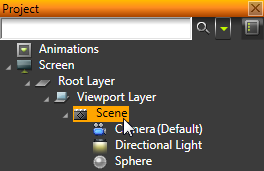
For example, create a Sphere.
For example, use Relative paths and enter
./Sphere.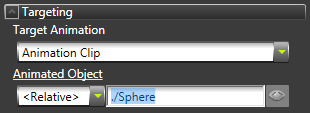
If you are using absolute paths in the timeline entries, in the Library select the timeline sequence and in the Properties set the Reference for Absolute Paths property. This property defines the reference for the absolute paths of animation targets in the timeline entries.
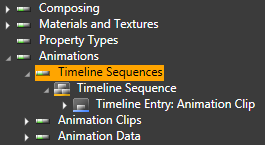
If you do not have Timeline Sequence or Timeline Entry objects, create them.
 Creating Timeline Sequences and Timeline Entries...
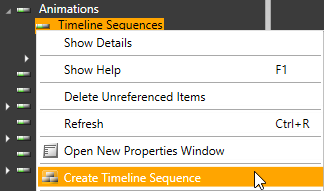
- In the Library right-click Animations > Timeline Sequences and select Create Timeline Sequence.
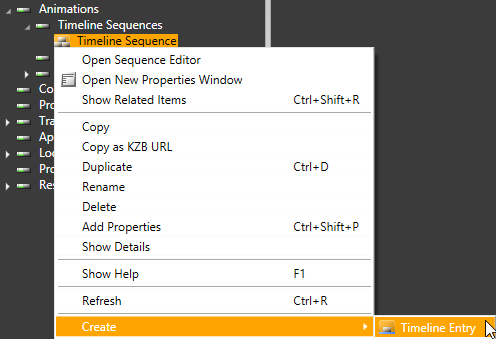
- In the Library right-click the timeline sequence where you want to create a timeline entry and select Create > Timeline Entry.
- Select the timeline entry and in the Properties set the Animated Object property to the element you want this animation to animate.
For example, use Relative paths and enter./Sphere.
If you are using absolute paths in the timeline entries, in the Library select the timeline sequence and in the Properties set the Reference for Absolute Paths property. This property defines the reference for the absolute paths of animation targets in the timeline entries.
For efficient management of your animations, set each timeline entry to target only one object (or hierarchy with hierarchical animations using clips and child clips).
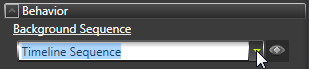
Animation Clip Editor opens.
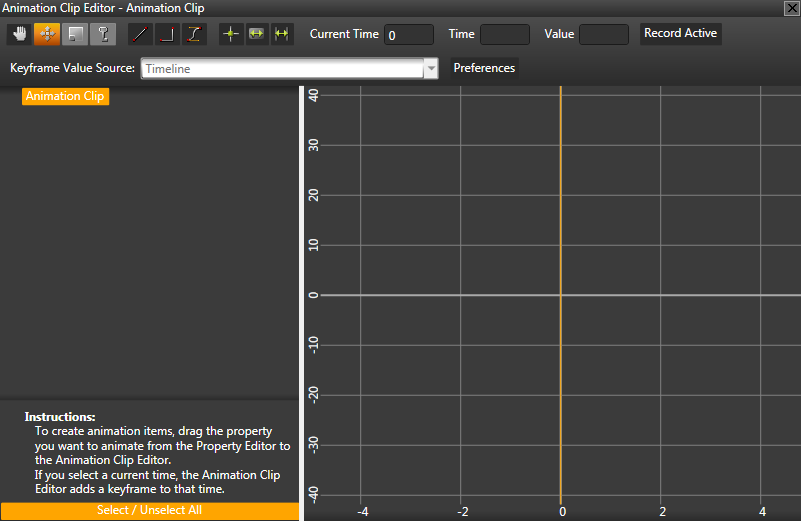
If you do not have an Animation Clip, create it.
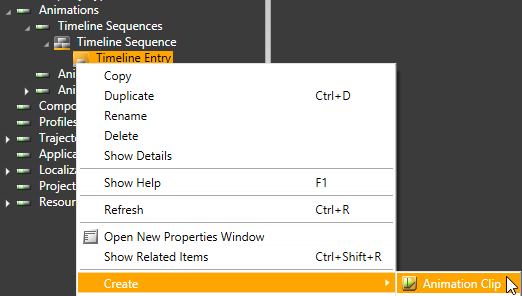
Creating animation clips...- In the Library right-click the Timeline Entry and select Create > Animation Clip.
In the Library select the Timeline Entry and in the Properties set the Target Animation property to the animation clip you just created.
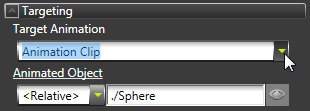
- In the Library double-click the Animation Clip to open it in the Animation Clip Editor.
For example, enter 0 to start the animation when your Kanzi application starts. See Editing animation clips.

In the Project select the object the property values of which you want to animate, and from the Properties drag the property you want to animate to the Animation Clip Editor.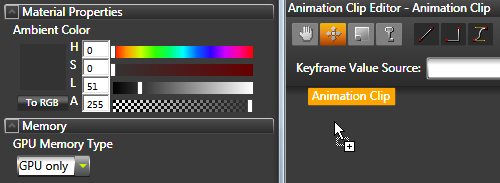
Kanzi Studio creates Animation Data for the property, and adds a keyframe for that property value at the value you selected as the Current Time.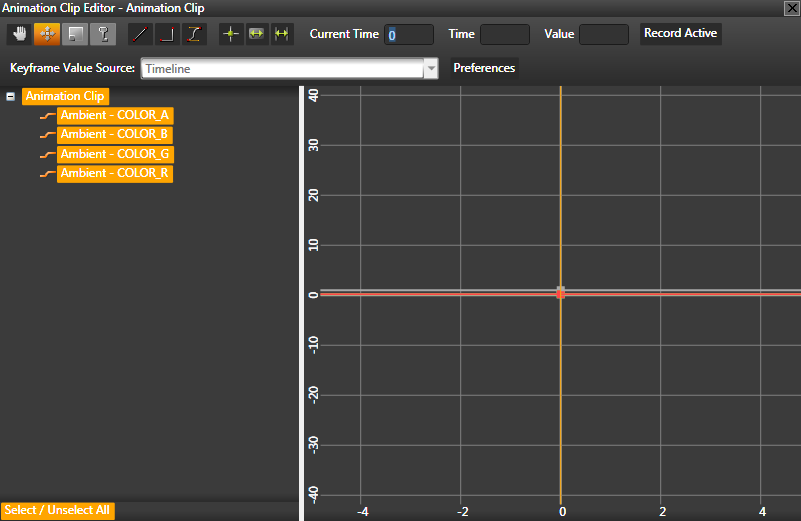
For example, click Add Properties, add Ambient Color property, and drag it to the Animation Clip Editor to animate the value of the object's ambient color.
In the Properties change the value of the property you are animating.
For example, change the Ambient Color property to red. See Editing content.

Kanzi Studio adds the new property values to the Animation Data.
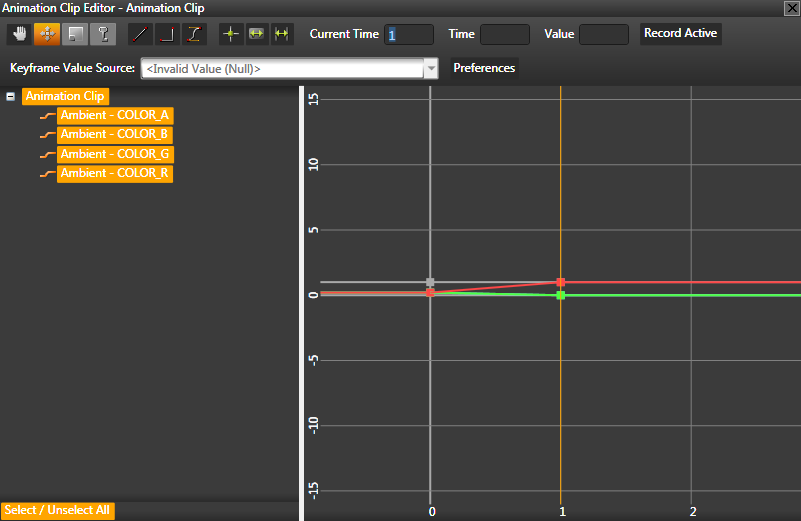
Repeat this step as many times as you want to add keyframes to your animation.

 to select two or more keyframes and then select the interpolation mode:
 Linear interpolation creates a linear transition between keyframe values.
 Step interpolation keeps the value of the current keyframe right until the next keyframe when its value is instantly taken into use.
 Bezier interpolation interpolates the values between keyframes using the Bezier polynomial.